Setup and Integration Guide
Connect Hire Gnome, send signed clients to recruiting, and see what syncs between the two apps.
Connect Hire Gnome
- In Hire Gnome, open Admin Area → Closer Gnome. Enable Allow Closer Gnome to sync changes to Hire Gnome for deal handoffs and two-way sync, then select Generate Token. Copy the Hire Gnome address and token. The token is shown once, and replacing it invalidates the old one.
- In Closer, open Admin → Hire Gnome Connection. Paste the address and token, select Save Connection, then select Test Connection.
- To enable single sign-on, select Allow Users to Sign In with Hire Gnome in Closer and save. Copy the callback URL shown on that page into Sign-in callback URL in Hire Gnome and save there too. In Closer, use Admin → Users → Link User to grant access. Linked users sign in with Continue with Hire Gnome and keep their Hire Gnome role and division. Manage those users and divisions in Hire Gnome.
Hire Gnome creates a dedicated account for integration work. Recruiters continue to use their own accounts and permissions. Use a Hire Gnome build with the Closer integration and the current database migrations for single sign-on and two-way activity sync.
From Prospect to Signed Agreement
- Create the prospect in Closer, or use Find in Hire Gnome for an existing Hire Gnome client. If the company is already in Closer, use Link Existing Hire Gnome Client on its record to keep its CRM history.
- Create an opportunity and track the deal in Closer. Set Stage to Agreement Signed when the agreement is in place. Saving the stage marks the company active in Closer.
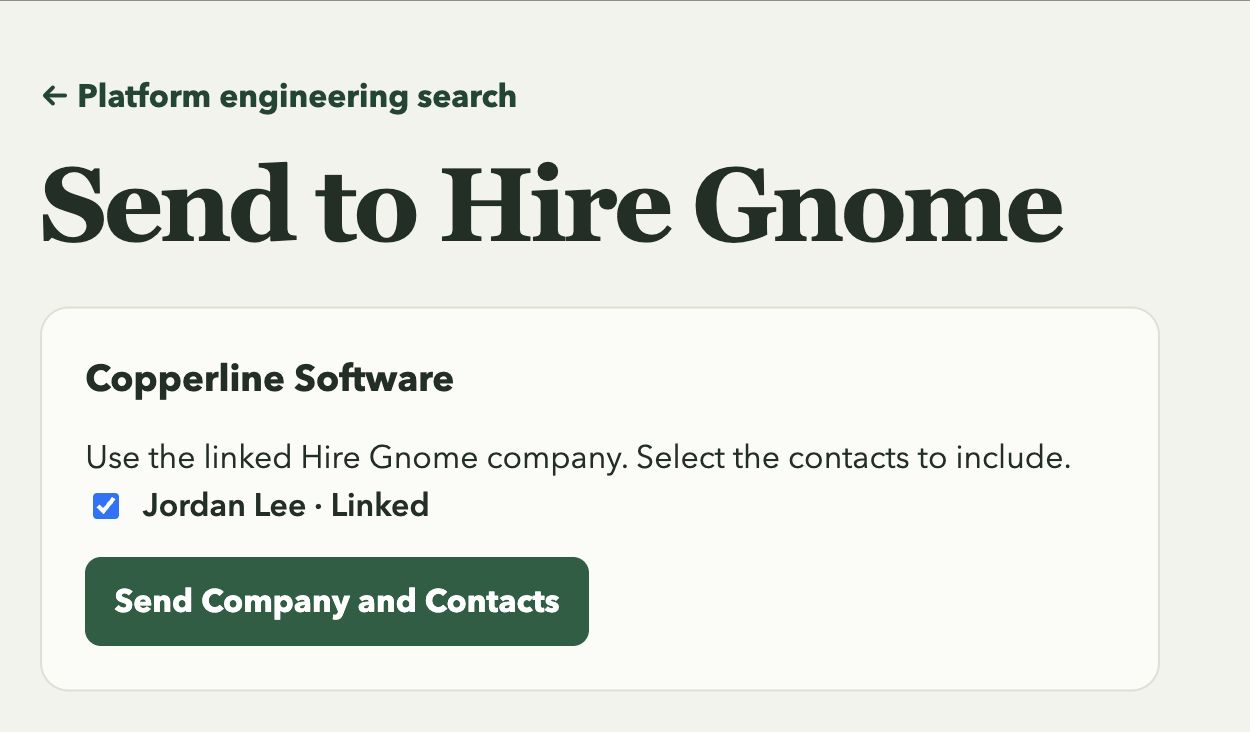
- To send the company to Hire Gnome, select Send to Hire Gnome and choose the contacts to include. A new Hire Gnome company needs a postal code, and each new contact needs an email address and phone number.
- For a new role, select Open New Hire Gnome Job Order. Hire Gnome fills in the client and the primary contact if linked. The recruiter completes and saves the job order in Hire Gnome.

Activity and Note Sync
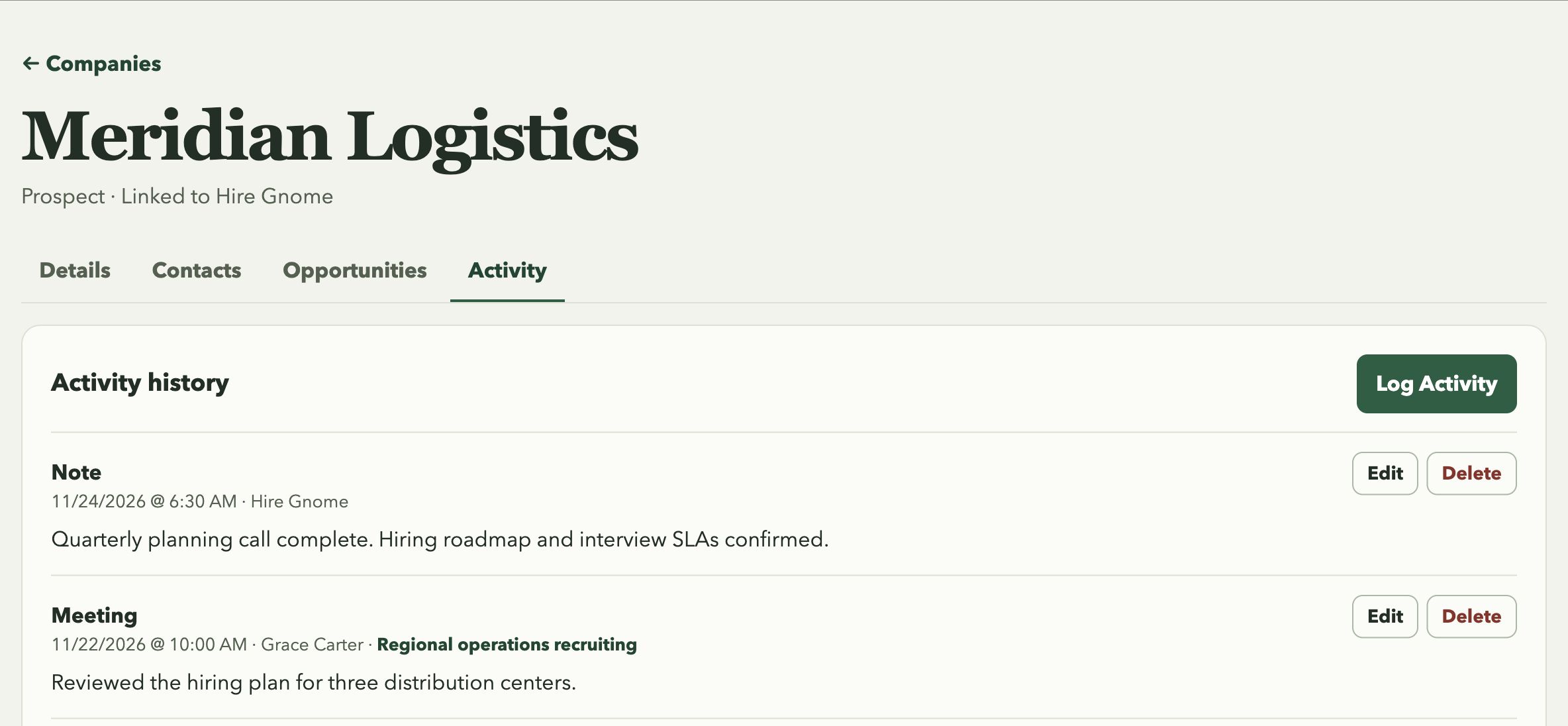
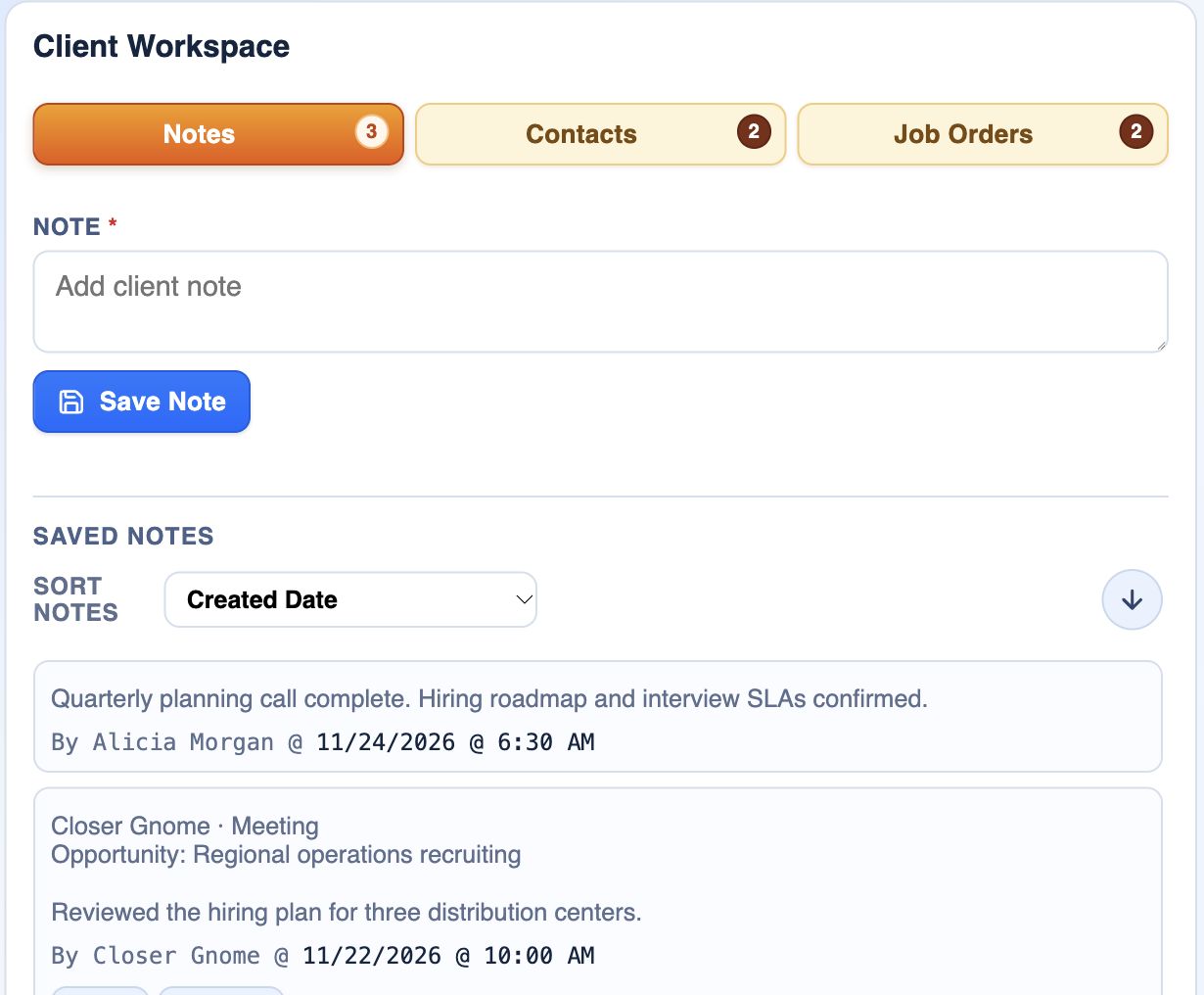
- Closer calls, emails, meetings, and notes appear in the linked company’s Notes tab in Hire Gnome when integration writes are enabled. Select a contact when logging activity to also send a copy to that linked contact. Opportunity activity defaults to the primary contact. Choose Company Only to send just the company copy. Earlier activity can sync once the company is linked. Private opportunity activity stays in Closer until the opportunity shares the linked company’s access scope.
- Edits and confirmed deletes to a synced activity carry over in either direction, including to its other copy when one exists. If you change the selected contact in Closer, the old contact’s copy is removed. Pending changes retry in the background if either app is temporarily unavailable.
- Notes created in Hire Gnome appear in the linked company or contact’s Activity tab in Closer. Select Refresh Hire Gnome Notes to check for changes while working in both apps. With integration writes enabled, Edit and Delete on those notes apply directly to Hire Gnome.
- If changes overlap, Closer sends a pending Closer edit or delete first. When both Hire Gnome copies change between sync checks, a deletion takes priority. Otherwise, the newer Hire Gnome edit is used.
The same activity in both apps
Linked company and contact details
With integration writes enabled, company name, industry, address, postal code, website, and phone sync, along with linked contacts’ names, titles, emails, and phone numbers. Refresh the record in the other app to see incoming changes. Changes to different fields merge. If both apps change the same field before the next sync, Hire Gnome’s value takes priority. Opportunity fields, relationship status, and decision-making responsibility stay in Closer.
Install Closer Gnome
Use a host with Docker Engine, Docker Compose v2, Bash, and OpenSSL. The Closer image supports Linux on Intel/AMD and ARM. Each install runs its own SQLite database.
Choose the download that matches your server, linux-amd64 for Intel/AMD or linux-arm64 for ARM. Both kits include the Closer image, which setup loads directly into Docker. Caddy is pulled from Docker Hub when automatic HTTPS is enabled.
Start Closer
For a public installation, point your DNS name at the server and open inbound ports 80 and 443. Run this from the extracted kit:
./setup.sh https://closer.example.comEnter your administrator email and choose a password when setup prompts you. The kit starts Closer and Caddy, which provisions and renews the HTTPS certificate. Open the sign-in link printed by setup and use the email and password you just entered. Run ./setup.sh again any time to start the same installation.
Open Admin → License to start a 30-day trial or activate a purchase key. For a standalone install, create users and divisions in Closer.
When setup runs without a terminal, it generates the password and stores it in the private .env file. Pass CLOSER_ADMIN_EMAIL in the environment to set the administrator email for an unattended install.
To add an administrator email to an earlier install, set CLOSER_ADMIN_EMAIL in its private .env file and run ./setup.sh.
For local testing, run ./setup.sh without a URL to use http://localhost:3260.
Use a reverse proxy you already run
When another proxy serves HTTPS on this host, leave Caddy disabled:
./setup.sh --existing-proxy --port 3260 https://closer.example.comConfigure your host proxy to forward the Closer hostname to http://127.0.0.1:3260. Choose another port if 3260 is occupied. If your proxy runs in Docker, join both services to a shared Docker network and forward to Closer's container on port 3260. Keep the URL users open in CLOSER_ORIGIN so authentication uses the correct origin.
Backups and Updates
Run ./backup.sh while Closer is running to create a consistent SQLite backup, or provide an output filename. Store a secure copy of the private .env file with each off-host backup. It contains the installation ID, administrator password used to encrypt the Hire Gnome token, and image tag.
To upgrade from a bundled kit, back up first and extract the new kit over the original installation directory. The archive contains no .env file. Set CLOSER_IMAGE in your existing .env to the value in the new image.txt, then run ./setup.sh to load the new image and replace the container.
For a registry-based install, change CLOSER_IMAGE to the new tag and run:
docker compose pull
./setup.sh
The named volume keeps the database across container replacements. If restoring an earlier backup, use the accompanying .env and restore the snapshot as /app/data/closer.sqlite into a fresh data volume before starting Closer.
Use docker compose ps to check the running stack and docker compose logs closer to review startup errors.